Tutorial: Finding a share
Although this is a very basic lesson, it will almost certainly teach you something new about ShareScope.
In the list, graph, details and most other views, all you need to do to find a particular instrument is start typing its name, its EPIC, its SEDOL or its ISIN code. ShareScope will automatically display the Find a share dialog and try to find a match for the characters you have typed.
The instruments you can search for will be determined by the active list.
In ShareScope Gold, which has a single window, the list of shares displayed in the List view is the active list. The active list defines the searchable universe in the List, Graph and Details views.
You can see the name of the active list displayed in the blue title bar at the top of the screen (e.g. List: FTSE 100 or List: Shares). You can change the active list from any of these views via the View menu option or one of the List buttons on the toolbar.
In ShareScope Plus and Pro, in which you may have multiple windows displayed, you can have different active lists in different windows. Windows that are linked, will have the same active list. The blue title bar of each window will tell you which is the active list of shares.
To change the list, use one of the toolbar List buttons or right-click in the window and select Change List from the context menu.
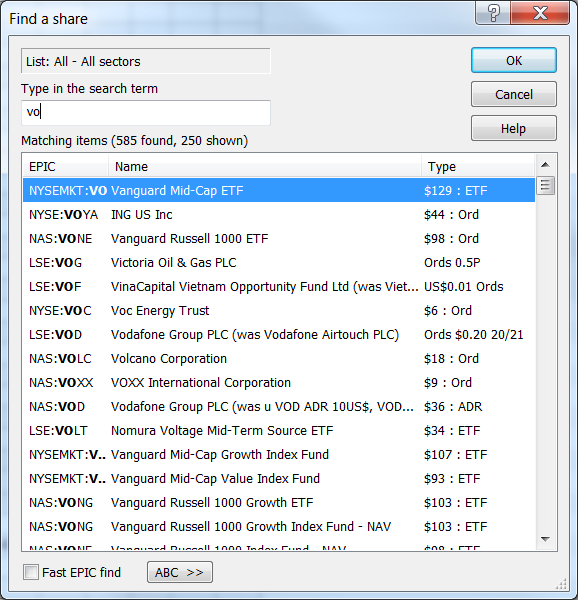
Let's get back to typing the name of the desired instrument. As soon as you start typing the Find a share dialog is displayed.
Note that this too tells you the active list (List: FTSE 100 All sectors). In the example, typing just vo or fone has been enough for ShareScope to identify the target instrument as Vodafone. Press Enter or click on OK to select the share.
Let's look at some of the options that can make searching for a share even easier for you.
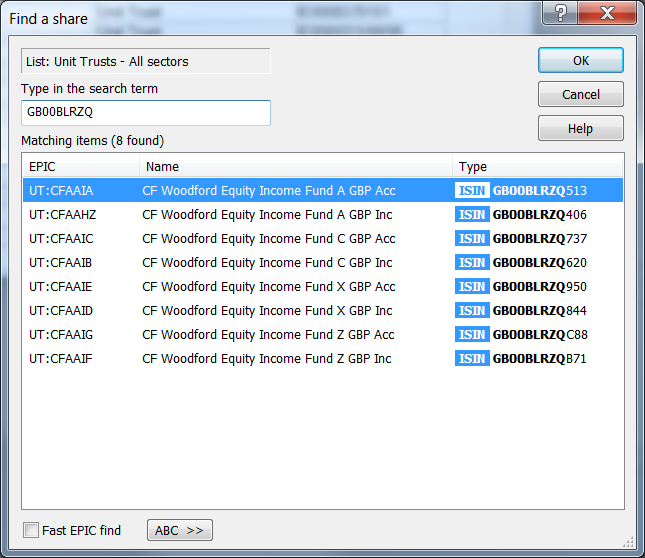
- With some instruments such as unit trusts, remembering the exact name is not always so easy so you may want to search via a unique identifier such as a SEDOL or ISIN code.
- Ticking Fast EPIC find will automatically select the instrument as soon as the text you enter is matched with an EPIC code.
- If you prefer to use the mouse, clicking on the ABC >> button in the dialog will display a keyboard which you can operate with the mouse.
You can also search for an instrument this way in the Level 2, Trades & Quotes, Portfolio and Data Mining views. In the latter two cases, of course, the instruments in the current portfolio or data mining filter provide your searchable universe.
Searching for Sector Constituents
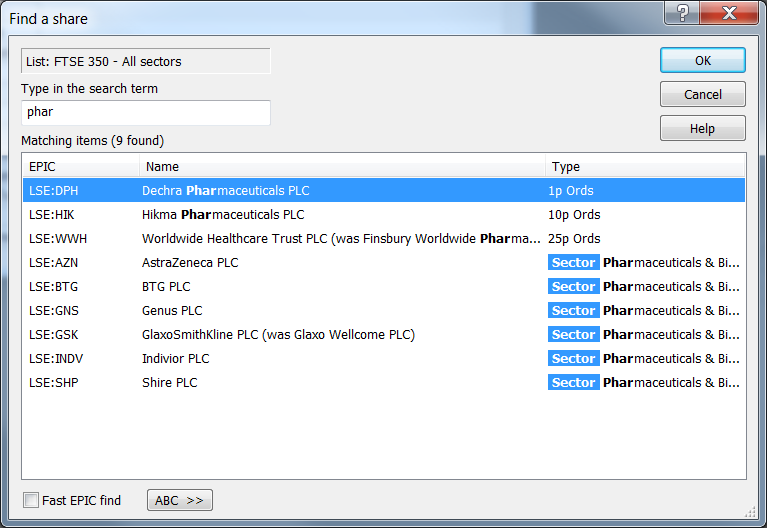
You can also search by typing a sector name e.g. Pharmaceuticals & Biotechnology. The search will return any shares that are constituents of that sector.
In this example, typing "phar" has found shares that either have "phar" as part of their name or they are constituents of the Pharmaceuticals & Biotechnology sector:
Searching for an ISIN or SEDOL code
ISIN and SEDOL codes are unique identifiers and can be useful when identifying funds in ShareScope. The ISIN and/or SEDOL code can usually be found on the fund's factsheet. Start typing the code to begin searching and any found matches will appear on the list:
Note also the following search functions in other ShareScope views:
- Portfolio view: press CTRL-A to display the Find a share dialog. The instrument you select will be added to the portfolio.
- Transaction view: start typing to find a share for which you want to add a transaction. The Find a share dialog will be displayed and once you select a share, the Record a transaction dialog will be displayed for you to complete. The share will be added to the portfolio if not already included.
- Directors' dealings: start typing to search for a specific Director or major shareholder.
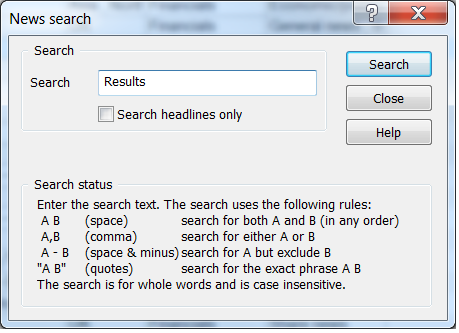
- News Table view: start typing to search for a topic in the news (e.g. "results"). There are number of options when searching for news - see the help in the News search dialog (below).
Remember, if you have any trouble finding or using any of these features, please don't hesitate to contact our Customer Support team. They will be delighted to help.